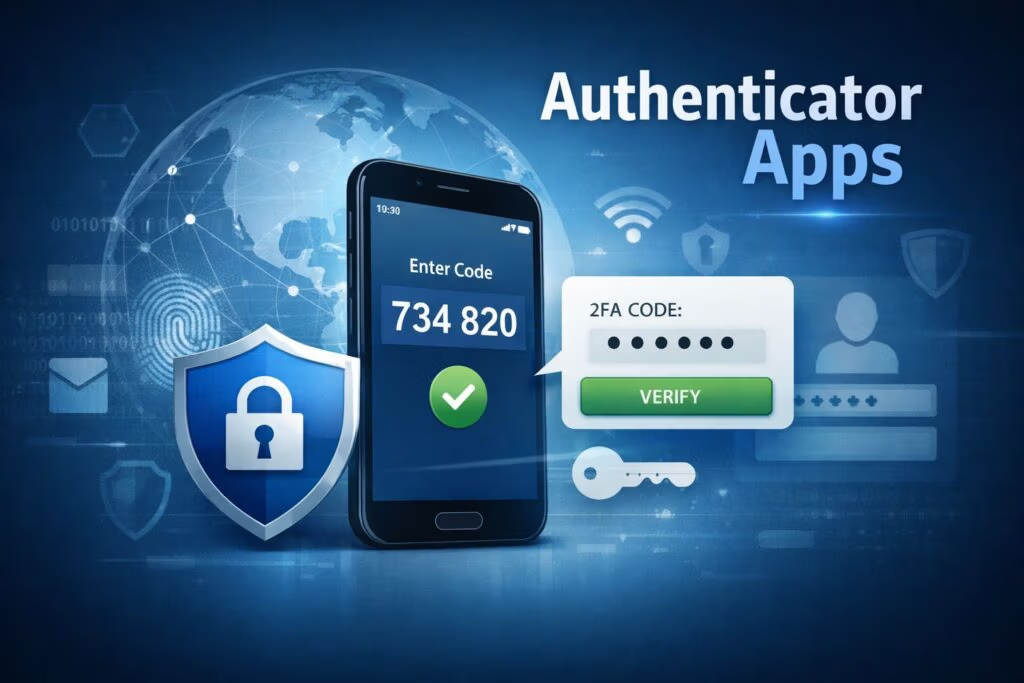
An authenticator app is a mobile security app that generates time-based one-time passwords (TOTPs) to verify your identity and protect your online accounts during login.
Authenticator App Explained
What Is an Authenticator App?
An authenticator app is a mobile application used for 2FA or MFA that generates TOTPs. These codes act as a second verification step, helping protect your accounts even if your password is compromised.
How Does an Authenticator App Work?
The app generates a temporary verification code that refreshes every 30 to 60 seconds. The login process typically works as follows:
- Enter your username and password
- Open your authenticator app
- Retrieve the current verification code
- Enter the code to complete the login
Some apps also support push notifications for faster, passwordless approval.
Benefits of Using an Authenticator App
Using a verification app offers several security and usability benefits:
- Protect accounts from phishing and credential theft
- Enable fast sign-ins with codes or push approvals
- Work offline without internet or cellular service
- Are free for most personal use cases
- Support passwordless authentication in some apps
Authenticator App vs SMS Authentication
Authenticator apps are more secure than SMS-based authentication because they generate verification codes locally on your device rather than sending them over a mobile network. SMS codes can be intercepted through SIM swap attacks or network vulnerabilities, while these apps are not exposed to these risks.
An authenticator app is a mobile application commonly used as part of two-factor authentication (2FA) or multi-factor authentication (MFA). It adds an extra layer of security by verifying your identity alongside your password during login. You can think of your password as the lock on your door (your online account), and an authenticator app as a second lock.
Most authenticator apps are free for personal use and are available on mobile devices. Some also offer desktop versions as browser extensions or standalone applications.
How Does an Authenticator App Work?
Most authenticator apps generate a six-digit or eight-digit one-time passcode (security code) that refreshes every 30 to 60 seconds.
Here is how it works:
- You log in to a website using your username and password.
- The website prompts you to enter a verification code.
- You open your authenticator app to retrieve the code.
- You enter the code to complete the login process.
You must enter the code within the time limit. Once it expires, it becomes invalid and you must use the newly generated code.
Some authenticator apps, such as Microsoft Authenticator, also support push notifications. Instead of entering a code, you receive a notification on your phone to approve or deny the login attempt. In some cases, you may also be asked to match or tap a number displayed on the login screen to complete the sign-in process.
Benefits of Using an Authenticator App
Using an authenticator app as a second authentication factor offers several security and usability benefits.
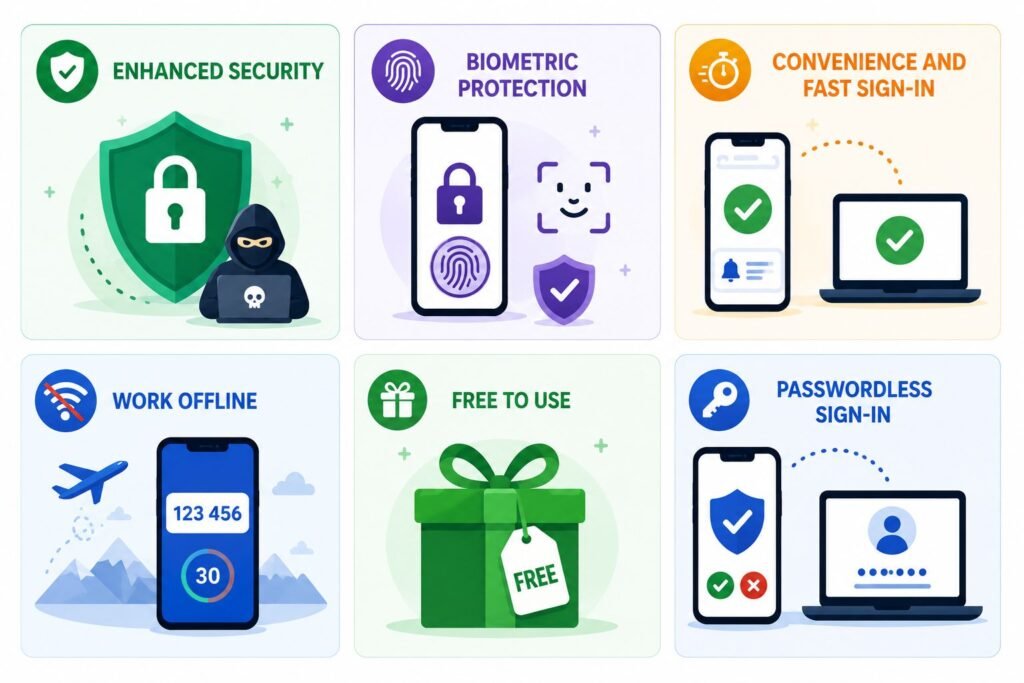
Enhanced Security
Authenticator apps provide strong protection against cyberattacks such as phishing and credential stuffing. Even if your password is compromised, it cannot be used alone to access your account without access to your device.
Biometric Protection
Most smartphones are secured with biometric authentication, such as fingerprint or facial recognition. Many authenticator apps add another layer of protection by requiring biometric authentication to access the app.
Convenience and Fast Sign-in
Authenticator apps are easy to use and enable quick sign-in through either verification codes or push notifications. The process is simple and efficient.
Work Offline
Authenticator apps can generate verification codes without an internet connection or cellular network. This is especially useful when traveling or in areas with limited connectivity.
Free to Use
Most popular authenticator apps are free for personal use and do not require a subscription.
Passwordless Sign-In
Some apps, such as Microsoft Authenticator, support passwordless sign-in, allowing users to authenticate by approving a login request on their phone instead of entering a password.
Drawbacks of Authenticator Apps
Despite their advantages, authenticator apps have some limitations:
Device Dependency
If you lose or damage your phone, regaining access to your accounts can be difficult. You may need backup codes or IT support, especially if you did not back up your 2FA data.
Limited Syncing Options
Some authenticator apps offer secure cloud backup and device syncing, while others do not. In some cases, backups may not be encrypted.
Migration Challenges
Transferring authenticator data to a new device requires careful setup. If done incorrectly, you may lose access to your accounts.
Popular Authenticator Apps
Examples of widely used authentication apps include:
- Microsoft Authenticator
- Google Authenticator
- Authy
- OTP Auth (iOS)
- Duo Mobile (freemium)
- LastPass
Most of these apps are free for personal use.
How to set up Authenticator App?
Setting up an authenticator app is straightforward. Here is a step-by-step guide:
Download a Trusted App
Install an authenticator app such as Google Authenticator, Microsoft Authenticator, or Authy from the Google Play Store or Apple App Store.
Access Security Settings
Log in to the account you want to secure (e.g., Amazon, Gmail, or your bank) and navigate to the 2FA settings under Security.
Select Authenticator App
Choose “Authenticator App” as your preferred 2FA method. A QR code or setup key will be displayed.
Link the Account
Open the app, tap the “+” icon, and scan the QR code or manually enter the setup key.
Verify the Connection
Enter the code displayed in the app to confirm successful setup.
Save Backup Codes
Store recovery codes securely (e.g., in a password manager or offline).
Complete Setup
Once verified, you will use the app to generate codes each time you log in.
Authenticator App vs SMS Authentication
Some websites use SMS to send verification codes. However, SIM-based authentication has notable security risks.
One major vulnerability is SIM swap attacks, where a criminal transfers your phone number to their device without your knowledge. If this occurs, any SMS verification codes sent to your number will be received by the attacker, allowing them to access your accounts.
As a result, many users prefer authenticator apps over SMS-based MFA because they provide stronger and more reliable security.
CISA identifies authenticator apps and phishing-resistant MFA methods as stronger alternatives to SMS-based authentication.
Best Practices for Using Authenticator Apps
Using an authenticator app effectively involves selecting a secure app, configuring it properly, and protecting your recovery options.
Choose a reputable app
Select apps that support biometric or PIN protection, encrypt stored data, and offer secure recovery options.
Enable backup options
Use cloud backup or manual export features to prevent losing access if your device is lost.
Store backup codes securely
Save recovery codes in a secure location. These are essential for account recovery.
Secure the app itself
Enable biometric or PIN protection to prevent unauthorized access, even if your phone is unlocked.
Final Thoughts
Authenticator apps provide a critical additional layer of security for your online accounts. Passwords alone are no longer sufficient due to risks such as phishing and other cyberattacks. Using an authenticator app significantly reduces the likelihood of unauthorized access.
Even if your password is compromised, attackers cannot access your account without your device. Additionally, if your phone is protected by biometric authentication or a PIN—and your authenticator app is similarly secured—unauthorized access becomes even more difficult.
Most authenticator apps are free, easy to use, work offline, and offer strong security benefits. There is little reason not to enable this feature on accounts that support it.
Frequently Asked Questions
What is an authenticator app?
An authenticator app generates time-based one-time passwords (TOTP) used as a second factor when logging in to online accounts.
Do authenticator apps require internet access?
No. Authenticator apps work without internet or cellular connectivity because codes are generated locally on your device.
Are authenticator apps safer than SMS authentication?
SMS-based 2FA relies on your phone number and carrier. If your number is compromised (e.g., via SIM swapping), attackers can intercept codes. Authenticator apps generate codes locally and are significantly more secure.
Can authenticator apps be used without a password?
Some apps, such as Microsoft Authenticator, support passwordless sign-in.
Can authenticator apps be hacked?
Authenticator apps are highly secure. However, risks increase if your device is compromised by malware, if backups are stored insecurely, or if your device is lost without proper protection.