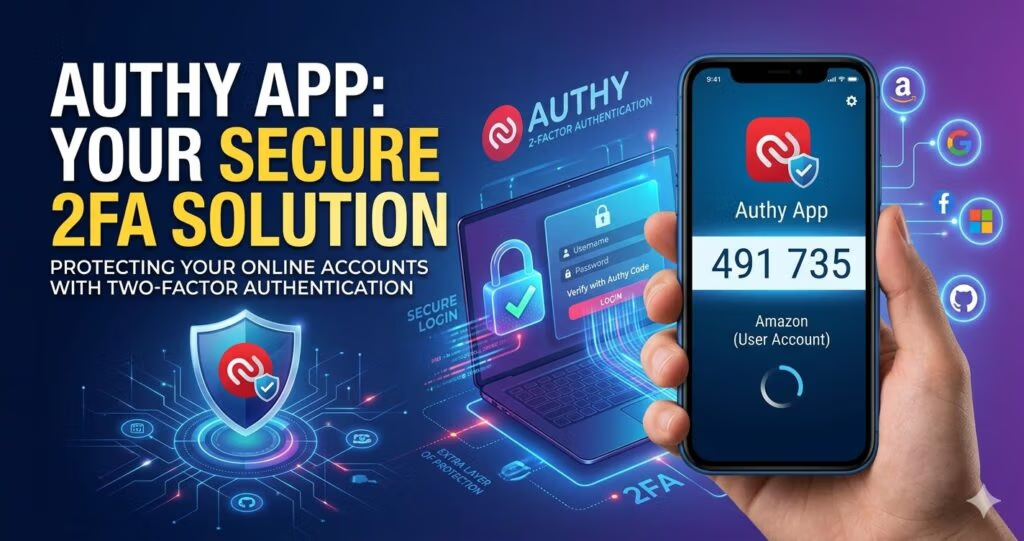
Authy combines strong two-factor authentication security with encrypted cloud backups and multi-device convenience, making it one of the most user-friendly authenticator apps available today.
Introduction
Authy is one of the most popular authenticator apps for two-factor authentication (2FA), known for its encrypted cloud backups and multi-device synchronization. However, after Twilio’s 2024 security incident involving 33 million phone numbers, many users are asking: Is Authy still safe to use?
In this review, we examine Authy’s security, features, advantages, risks, setup process and how it compares to Google Authenticator and Microsoft Authenticator.
Quick Answers
⭐What Is Authy Authenticator?
Authy is a two‑factor authentication app that generates time‑based security codes for logging into online accounts. It supports encrypted cloud backups, multi‑device syncing, and easy account recovery, making it a convenient alternative to basic authenticator apps while still offering strong protection against unauthorized access.
🔐 Is Authy Safe?
Yes — Authy is generally considered safe to use thanks to its end‑to‑end encrypted backups, device‑level security, and strong authentication model. While its phone‑number dependency and past exposure incident raise concerns, the app still provides robust protection compared to SMS‑based verification.
⚖️ Is Authy Better Than Google Authenticator?
Authy is often seen as more convenient than Google Authenticator because it offers encrypted backups, multi‑device support, and simple recovery. Google Authenticator is more minimal and privacy‑focused. Authy suits users who want flexibility, while Google Authenticator appeals to those who prefer a lightweight, no‑cloud approach.
📴 Does Authy Work Offline?
Yes — Authy works offline for generating 2FA codes. Once your accounts are set up, the app doesn’t need an internet connection to produce time‑based one‑time passwords. Only features like cloud backup, device syncing, and account recovery require connectivity.
How to Set Up and Use Authy
Setting up Authy is simple and usually takes only a few minutes. Once configured, Authy generates secure one-time login codes that add an extra layer of protection to your online accounts.
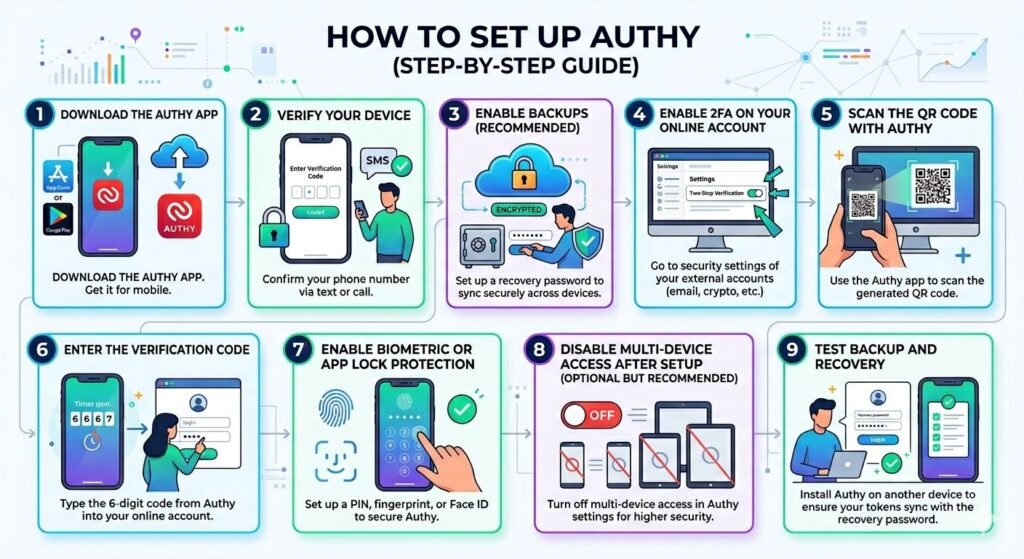
1. Download the Authy App
Install Authy from the official app store on your mobile device:
- iPhone/iPad: Apple App Store
- Android: Google Play Store
After installation, open the app and register using your phone number.
2. Verify Your Device
Authy will send a verification request through SMS, phone call or existing Authy device (if available)
Once verified, your device becomes authorized to generate authentication codes.
3. Enable Backups (Recommended)
Authy offers encrypted cloud backups so you can recover your accounts if you lose or replace your phone.
When enabling backups:
- Create a strong backup password
- Store the password securely
- Never reuse passwords from other accounts
Your backup password encrypts your 2FA tokens locally before they are uploaded, meaning even Twilio cannot access them.
4. Enable 2FA on Your Online Account
Go to the security settings of the account you want to protect, such as Gmail, Amazon, Facebook, Discord and PayPal.
Look for:
- Two-Factor Authentication
- Two-Step Verification
- Authenticator App
The website will display a QR code.
5. Scan the QR Code with Authy
In Authy:
- Tap the “Add Account” button
- Scan the QR code
- Save the account
Authy will immediately begin generating 6-digit time-based one-time passwords (TOTPs).
6. Enter the Verification Code
Enter the current 6-digit code from Authy into the website to complete setup. Once verified, your account is protected by two-factor authentication.
7. Enable Biometric or App Lock Protection
For additional security, enable face ID, fingerprint unlock or device PIN protection.
This helps prevent unauthorized access if your device is lost or stolen.
8. Disable Multi-Device Access After Setup (Optional but Recommended)
Authy’s multi-device feature is convenient, but security-conscious users may prefer disabling it after setup.
This reduces the risk of unauthorized device registrations.
To disable it:
- Open Authy Settings
- Go to “Devices”
- Turn off “Allow Multi-Device”
9. Test Backup and Recovery
Before relying on Authy, test:
- device recovery
- backup restoration
- secondary device access
This helps prevent accidental lockouts if your phone is lost or damaged.
Key Features and Advantages of Authy
For many years, Authy has been considered as one of the most secure authenticator apps. Many users prefer Authy because it is flexible and user-friendly.
Encrypted Cloud Backup
Authy encrypts your 2FA tokens and securely backs them up in the cloud. This allows you to restore your accounts easily if you lose, break or replace your phone.
Unlike its competitors, Authy encrypts your data before it leaves your device, meaning Twilio cannot access your authentication tokens.
Multi-Device Synchronization
You can install Authy on multiple devices such as mobile phones and tablets, and sync your 2FA data across them. This is especially useful if you use more than one device or want a backup device for emergencies.
Authy previously supported desktop apps, but in March 2024, it officially discontinued support for Windows, macOS and Linux.
Password Protection
Authy requires you to set up a strong password to restore your backed-up data on a new device. This password is not stored by Authy; it exists only on your device. If you forget it, you cannot restore your 2FA data. This design enhances security but requires you to remember your password.
Biometric Protection
Authy supports biometric authentication (fingerprint, Touch ID and Face ID) as an optional security layer. When enabled, you must use your biometric scan to open the app, adding protection against device loss or theft.
Multi-Platform Feature
After discontinuing its desktop apps in 2024, Authy now primarily supports mobile platforms: Android and iOS (iPhone/iPad).
Strong Device Control
Authy gives you full control over your authorized devices. You can manage the device and account information directly from the app. You can approve or block new devices, remove old ones and view all devices linked to your account. This improves both security and flexibility.
Easy setup and use
Authy makes enabling 2FA simple. It easily scans QR codes from services that support 2FA. The interface is beginner-friendly, making it suitable even for non-technical users.
Best Practices for Using Authy Safely
Authy is secure, but your safety depends on how you use it. Following key security practices helps reduce account‑compromise risks.
Use a Strong Backup Password
Your backup password protects encrypted 2FA data. Best practices:
- use long, complex passwords
- avoid reuse
- store it in a password manager
If someone gets this password, they could restore your encrypted backups.
Disable Multi‑Device Access When Not Needed
Authy’s multi‑device feature is convenient but increases risk. Enable it only during setup, then disable it to reduce unauthorized device‑registration attempts.
Enable Biometric Protection
Use Face ID, Touch ID, fingerprints, or a device PIN to protect Authy if your phone is lost or accessed by someone else.
Secure Your Phone Number
To reduce SIM‑swap risks:
- set a carrier PIN
- enable carrier account protection
- avoid sharing your number publicly
Beware of Phishing Attacks
Authy can’t protect you if you enter codes on fake sites. Always verify URLs and never share 2FA codes.
Keep Recovery Methods Updated
Ensure your recovery email, backup device, and recovery number stay current to avoid lockouts.
Use Authy With a Password Manager
2FA works best with strong, unique passwords and a password manager. Weak passwords undermine any authenticator app.
Is Authy Safe to Use?
Authy is generally safe to use, offering strong protection through encrypted cloud backups, biometric security, and multi‑device synchronization. It generates offline TOTP codes, which refresh every 30 seconds, are created locally on your device, and never travel over the internet. This makes Authy far more secure than SMS‑based 2FA, which is vulnerable to SIM‑swapping attacks.
A major advantage is its encrypted backup system: data is encrypted before leaving your device, protected by your backup password, and unreadable to Twilio. This allows safer, simpler account recovery compared to apps without cloud backup.
In the 2024 Authy breach, attackers exposed 33 million phone numbers but no TOTP secrets, tokens, or passwords. While the incident increased phishing and SIM‑swap risks, Authy’s core authentication system remained secure.
Authy Pros and Cons
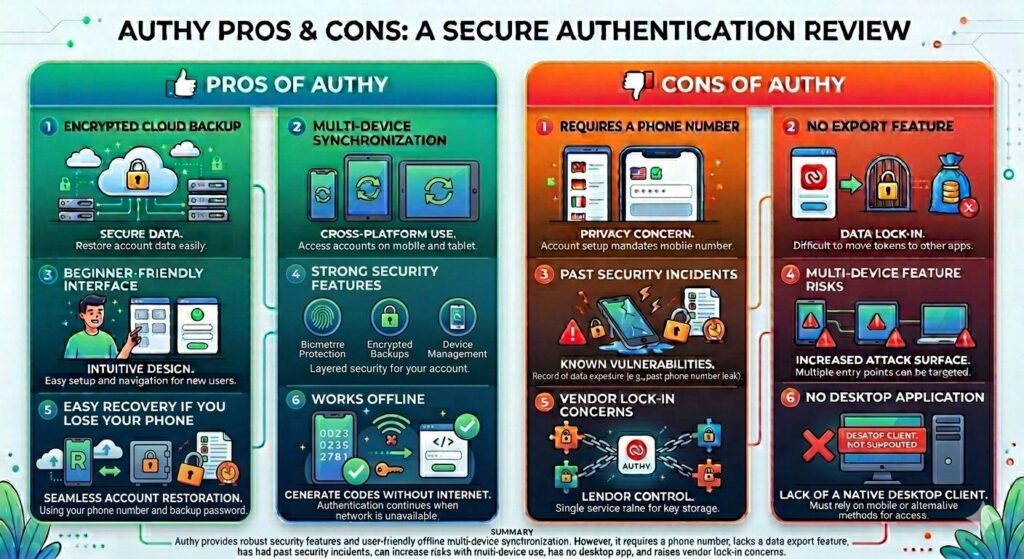
Pros of Authy
Encrypted Cloud Backup
Authy securely encrypts backups before uploading them to the cloud, making account recovery much easier.
Multi-Device Synchronization
You can use Authy across multiple phones and tablets, which is convenient for backup and device replacement.
Beginner-Friendly Interface
Authy is easy to set up and use, even for non-technical users.
Strong Security Features
Features include:
- biometric protection
- encrypted backups
- device management
- offline TOTP generation
Easy Recovery if You Lose Your Phone
Compared to some competitors, Authy offers one of the simplest recovery experiences.
Works Offline
Authy does not require internet access to generate authentication codes.
Cons of Authy
Requires a Phone Number
Some users dislike the mandatory phone-number registration due to privacy and SIM-swap concerns.
No Export Feature
You cannot easily transfer your 2FA tokens to another authenticator app.
2024 Phone Number Exposure Incident
Although authentication tokens were not compromised, the breach raised privacy and phishing concerns.
Multi-Device Feature Can Increase Risk
While convenient, multi-device synchronization can create additional attack surfaces if not managed properly.
No Desktop Application
Authy discontinued support for Windows, macOS and Linux desktop apps in 2024.
Vendor Lock-In Concerns
Because token export is unavailable, migrating away from Authy can be time-consuming.
Phone Number Dependency in Authy
Authy relies entirely on your phone number to establish your account identity, tying all your encrypted 2FA backups and verification codes directly to it. This setup simplifies multi-device synchronization and makes transitioning to a new phone much easier than using traditional device-only alternatives.
However, this heavy phone-number dependency introduces notable security and privacy concerns. It leaves accounts vulnerable to SIM-swap attacks, where malicious actors intercept verification codes, and losing access to your number can drastically complicate recovery.
Ultimately, unlike device-restricted apps like Google Authenticator, Authy intentionally trades a portion of privacy and portability for a more convenient, cloud-backed account restoration process.
Authy vs Google Authenticator vs Microsoft Authenticator
| Feature | Authy | Google Authenticator | Microsoft Authenticator |
| TOTP | Yes | Yes | Yes |
| Cloud backup | Yes (encrypted) | Limited | Yes |
| Multi-device sync | Yes | Limited | Yes |
| Bimometric/App Lock | Yes | Yes | Yes |
| Work Offline | Yes | Yes | Yes |
| Backup & restore | Yes | Yes | Yes |
| Export feature | No | Yes | No |
| Desktop support | No | Yes | No |
| Push notification | No | No | Yes |
| Passwordless Sign-in | No | No | Yes |
| Phone Number Required | Yes | No | No |
Who Should Use Authy?
Authy is well‑suited for users who want strong security with easy recovery. Its encrypted backups and multi‑device sync make it helpful for people managing many accounts or switching devices often.
People with Multiple Devices
Authy works well for users who:
- use more than one device
- want a backup option
- switch devices regularly
Its syncing feature makes accessing codes easier than single‑device authenticators.
Users Who Frequently Replace or Upgrade Phones
If you:
- upgrade phones often
- lose devices
- worry about lockouts
Authy’s encrypted recovery helps avoid reconfiguring every 2FA account.
Beginners New to Two‑Factor Authentication
Authy is beginner‑friendly, offering:
- simple QR scanning
- a clean interface
- easy account management
A solid choice for users new to 2FA.
Users Who Want Convenient Backup and Recovery
Authy benefits users who value:
- secure cloud backup
- flexible recovery
- smooth device migration
This reduces the risk of accidental lockouts.
Users Seeking Better Security Than SMS‑Based 2FA
Authy offers stronger protection than SMS codes, helping defend against:
- password theft
- phishing
- SIM‑swap attacks
Security agencies like CISA (Cybersecurity & Infrastructure Security Agency) and NIST (National Institute of Standards & Technology) recommend app‑based authenticators.
People Wanting a Balance of Security and Convenience
Authy suits users who want:
- strong everyday security
- simple setup
- easy recovery
- a user‑friendly design
without dealing with complex configurations.
- People with multiple devices
- People who frequently upgrade or replace phones
- People who want easy setup
- Users who want secure backup and recovery options
Who Should Avoid Authy?
Authy is a strong authenticator app, but some users may prefer alternatives with more privacy, portability, or transparency.
Privacy‑Focused Users Who Dislike Phone Number Requirements
Authy requires a phone number, which may concern users who dislike:
- phone‑number dependency
- SIM‑swap exposure
- centralized account association
Privacy‑focused users may prefer apps that don’t require phone‑number registration.
Users Who Want Easy Export and Migration
Authy lacks token export, making migration tedious. Users who frequently switch apps may find manual 2FA reconfiguration frustrating.
Advanced Users Who Prefer Open‑Source Security Tools
Some advanced users prefer:
- open‑source tools
- auditable code
- decentralized authentication
Authy’s proprietary nature may not suit them.
Users Concerned About Vendor Lock‑In
Without export support, long‑term dependence on Authy can worry:
- IT professionals
- cybersecurity enthusiasts
- users managing many accounts
Users Who Prefer Offline‑Only Authentication Ecosystems
Although Authy generates codes offline, some users avoid any cloud‑based features. They may prefer apps that:
- store everything locally
- avoid cloud sync
- minimize centralized recovery systems
Final Verdict: Is Authy Worth Using?
Authy remains one of the most secure and user-friendly authenticator apps. Despite the 2024 security incident where over 33 million phone numbers associated with Authy accounts were exposed, its core security features – encrypted cloud backups, password-protected restores and multi-device support – continue to make it a strong choice.
Authy is especially suitable for beginners using 2FA for the first time, users managing multiple devices and people who want simple backup and recovery options.
However, it also has some drawbacks, including phone-number dependency, lack of token export support and privacy concerns following the 2024 phone-number exposure incident.
Despite these limitations, Authy still provides significantly stronger protection than SMS-based verification.
Frequently Asked Questions
What Is Authy And How Does It Work?
Authy is a 2FA app that generates secure, time-based one-time passwords (TOTPs). After you enable 2FA on an account, Authy provides a unique code that refreshes every 30 seconds, adding an extra layer of protection beyond your password.
Is Authy Safe To Use?
Yes, Authy is generally considered safe. It uses strong encryption to protect your data and offers features like secure cloud backups and multi-device synchronization. However, your security also depends on how well you protect your device and backup password.
What Makes Authy Different From Other Authenticator Apps?
Authy stands out because it offers:
– Multi-device sync (use on phone, tablet, desktop)
– Encrypted cloud backups
– Easy account recovery if you lose your device
These features make it more flexible compared to apps that only work on a single device.
Does Authy Work Offline?
Yes, Authy works offline. Once your accounts are set up, it generates authentication codes without needing an internet connection.
Is Authy Better Than SMS-Based Verification?
Yes, Authy is significantly more secure than SMS-based 2FA. SMS codes can be intercepted through SIM-swapping attacks, while Authy generates codes directly on your device.
Can I Use Authy On Multiple Devices?
Yes, Authy allows you to use your accounts on multiple devices. You can enable or disable this feature in the app settings for added security.
Can Authy Be Hacked?
While no app is 100% immune, Authy itself is highly secure. Most risks come from:
– Weak backup passwords
– Compromised devices
– Phishing attacks
Using strong passwords and securing your device significantly reduces risk.
Should I Enable Backups In Authy?
Yes, enabling backups is recommended for convenience and recovery. Just make sure to use a strong, unique backup password, as this protects your encrypted data.
Authy is a 2FA app that generates secure, time-based one-time passwords (TOTPs). After you enable 2FA on an account, Authy provides a unique code that refreshes every 30 seconds, adding an extra layer of protection beyond your password.