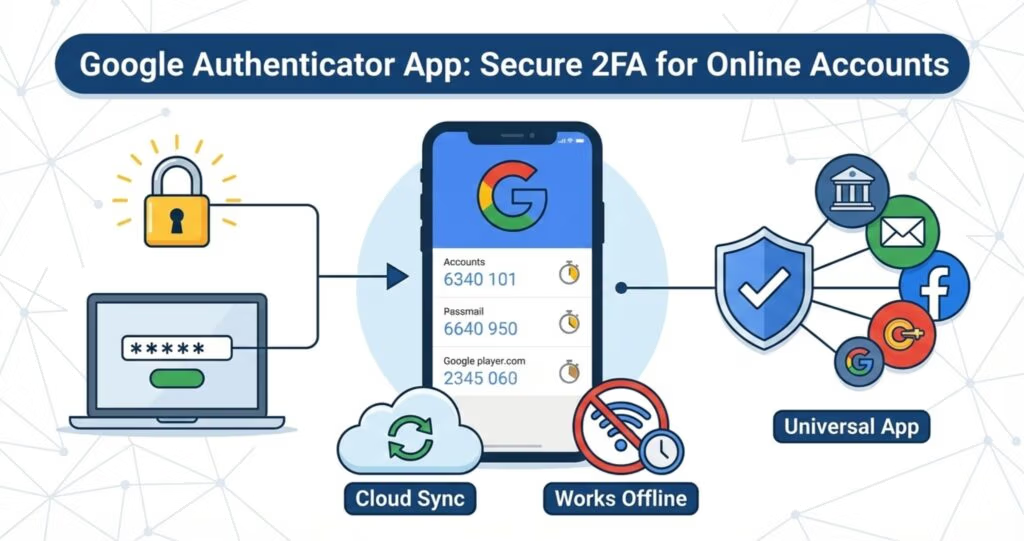
Google Authenticator is a free two-factor authentication (2FA) app developed by Google that helps protect online accounts by generating time-based one-time passwords (TOTP). These temporary security codes provide an extra layer of protection beyond passwords when signing in to websites, apps, and online services.
Unlike SMS-based authentication, Google Authenticator generates verification codes directly on your device rather than sending them through text messages. This makes it significantly more secure against SIM swap attacks, phishing attempts, and intercepted SMS codes.
As cyberattacks, credential theft, and data breaches continue to increase worldwide, passwords alone are no longer enough to secure online accounts. Using an authenticator app like Google Authenticator is now considered one of the most effective ways to strengthen account security and protect personal information.
Quick Answers:
What Is Google Authenticator?
Google Authenticator is a free mobile app that generates time-based one-time passwords (TOTP) for two-factor authentication (2FA). It adds an extra layer of security to online accounts by requiring a temporary verification code in addition to a password during sign-in.
Does Google Authenticator Require Internet?
No. Google Authenticator does not require internet access or cellular service to generate verification codes. The app creates TOTP codes locally on your device using a stored secret key and your device’s internal clock.
- Why Passwords Alone Are No Longer Enough
- How Google Authenticator Works
- How to Set Up Google Authenticator
- How to Use Google Authenticator
- Benefits and Features of Google Authenticator
- Limitations of Google Authenticator
- Is Google Authenticator Safe?
- Google Authenticator vs Competitors
- Best Practices for Using Google Authenticator Safely
- Final Thoughts
- Frequently Asked Questions
Why Passwords Alone Are No Longer Enough
Traditionally, online accounts relied only on usernames and passwords for security. However, passwords are increasingly vulnerable to cyber threats such as:
- Data breaches
- Password leaks
- Credential stuffing attacks
- Phishing attacks
- Malware infections
- Brute-force attacks
Even strong passwords can become compromised if a website or service provider suffers a data breach.
To improve account security, major technology companies such as Google, Microsoft, and Apple introduced additional verification methods through Multi-Factor Authentication (MFA) and Two-Factor Authentication (2FA).
MFA and 2FA are security methods designed to protect online accounts by requiring additional forms of identity verification during the login process. Beyond a password — the first authentication factor representing something a user knows — MFA and 2FA incorporate additional factors such as something a user has (for example, a smartphone or security device) and something a user is (biometric identifiers such as a fingerprint or facial recognition).
How Google Authenticator Works
Google Authenticator works by generating a unique six-digit verification code that refreshes approximately every 30 seconds.
When you enable 2FA on an online account, the website provides a QR code containing a secret encryption key. After scanning the QR code using Google Authenticator, the app stores the secret key securely on your device.
During login:
- You enter your username and password.
- The website asks for a verification code.
- Google Authenticator generates a temporary six-digit TOTP code.
- You enter the code to complete the sign-in process.
Because the codes are generated locally on your device, Google Authenticator can work even without internet access or cellular service.
How to Set Up Google Authenticator
Setting up Google Authenticator is straightforward and usually takes only a few minutes.
Step-by-Step Setup Guide
Step 1: Download Google Authenticator
Install Google Authenticator from:
- Google Play Store (Android)
- Apple App Store (iPhone/iOS)
Step 2: Open Your Account Security Settings
Log in to the online account you want to secure and navigate to:
- Security Settings
- Account Protection
- Two-Factor Authentication (2FA)
Step 3: Enable Two-Factor Authentication
Choose “Authenticator App” as your preferred authentication method.
Step 4: Scan the QR Code
The website will display a QR code.
Open Google Authenticator and scan the QR code using your phone camera.
Step 5: Verify the Setup
Google Authenticator will generate a six-digit verification code.
How to Use Google Authenticator
Each time you sign in to an account protected by Google Authenticator:
- Enter your username and password.
- Open Google Authenticator on your device.
- Locate the account’s six-digit verification code.
- Enter the code before it expires.
The verification codes refresh automatically every 30 seconds.
Benefits and Features of Google Authenticator
Stronger Security Than SMS Authentication
Authenticator apps are generally more secure than SMS-based authentication because verification codes are generated locally on your device instead of being transmitted through mobile networks.
This helps reduce the risk of:
- SIM swap attacks
- SMS interception
- Mobile carrier compromise
- Message forwarding attacks
Works Offline
Google Authenticator can generate TOTP codes even without:
- Internet connection
- Wi-Fi access
- Cellular signal
This makes it convenient while traveling or during network outages.
Widely Supported
Google Authenticator works with many major online services, including Google, Microsoft, Amazon, Facebook, Instagram, Discord, Dropbox, financial institutions and cryptocurrency platforms.
Free to Use
The authenticator is completely free and does not require paid upgrades, subscription fees and premium plans.
Cloud Sync Support
Newer versions of Google Authenticator support cloud synchronization through Google accounts, making device migration and backup recovery easier.
Simple and Beginner-Friendly
Google Authenticator has a lightweight and straightforward interface that is easy for beginners to use.
Limitations of Google Authenticator
Although Google Authenticator is one of the most popular and trusted 2FA apps, it also has several limitations that users should understand before relying on it as their primary authentication method.
No Push Notification Approval
Unlike some competing authenticator apps such as Microsoft Authenticator, Google Authenticator does not support push notification approval for sign-ins.
With push-based authentication, users can simply tap “Approve” on their device instead of manually entering a six-digit verification code. Because Google Authenticator relies entirely on TOTP codes, users must manually type the code every time they log in.
This makes the sign-in process slightly less convenient compared to modern passwordless authentication systems.
Limited Passwordless Authentication Support
Google Authenticator primarily functions as a traditional TOTP-based second authentication factor used together with passwords.
Unlike advanced authentication platforms, it does not fully support passwordless sign-in experiences where users authenticate entirely through device approval, biometrics, or security keys without entering a password.
Account Recovery Can Be Difficult
One of the biggest disadvantages of Google Authenticator is account recovery after losing access to a device.
If your phone is lost, stolen, damaged or factory reset and you do not have recovery codes, cloud synchronization enabled or backup devices, you may lose access to your accounts permanently or face lengthy recovery processes.
For this reason, securely storing backup recovery codes is extremely important.
Limited Multi-Device Flexibility
Although newer versions support cloud synchronization, Google Authenticator still offers less flexibility for multi-device management compared to some competitors like Authy.
Managing authentication codes across multiple devices may be less convenient for users who frequently switch devices.
Is Google Authenticator Safe?
Google Authenticator is generally considered a safe and secure 2FA app. It provides significantly stronger protection than SMS-based authentication because verification codes are generated directly on your device instead of being transmitted over mobile networks.
However, the overall security of Google Authenticator also depends on how securely you manage your phone.
Potential risks may arise if:
- Your phone is lost or stolen
- Your device is unlocked
- Your device is infected with malware
- You do not store backup recovery codes
- Your Google account becomes compromised
If someone gains physical access to an unlocked device, they may be able to access your authenticator codes.
For this reason, securing your phone is just as important as securing your online accounts.
Google Authenticator vs Competitors
Google Authenticator and Microsoft Authenticator are the two most popular authentication apps that dominate and control the market. In terms of user bases, Authy (owned by Twilio) follows Google and Microsoft as the next popular authenticator app.
Below is the summary comparison table of Google Authenticator, Microsoft Authenticator and Authy.
| Feature | Google Authenticator | Microsoft Authenticator | Authy (Twilio) |
| Time-based Codes (TOTP) | Yes | Yes | Yes |
| Push Notification Login | No | Yes | No |
| Passwordless Sign-In | No | Yes | No |
| Biometric/App Lock | Yes | Yes | Yes |
| Works Offline | Yes | Yes | Yes |
| Cloud Backup | Yes | Yes | Yes (encrypted) |
| Cost | Free | Free | Free |
| Muiti-Device Sync | Yes | Limited (manual) | Yes (best) |
| Account Recovery | Google Account | Microsoft Account | Backup password |
| Backup & Restore | Yes | Platform specific | Yes |
| Best For | Simple 2FA | Microsoft users, push login | Backup & multi-device |
| Unique Advantages | Simple, lightweight, widely compatible | Push notification, passwordless login | Multi-device support, encrypted backup |
Google Authenticator is simpler and easier for beginners, while Microsoft Authenticator has more advanced features such as push notifications and passwordless sign-in.
If you only need a basic, feature-light authenticator, Google Authenticator is an excellent choice since it is lightweight and very simple to use.
If you use Microsoft services (Outlook, OneDrive, Office 365) and want a stronger alternative sign-in process like push notifications and passwordless sign-in, Microsoft Authenticator is your choice.
While Authy excels at multiple device support, Google Authenticator is often preferred by those who want to keep their 2FA data strictly tied to their Google account ecosystem for simplicity.
Best Practices for Using Google Authenticator Safely
Use Strong Device Security
Protect your phone with:
- Strong PIN
- Password
- Fingerprint authentication
- Facial recognition
Save Backup Recovery Codes
Most websites provide recovery codes when enabling 2FA.
Store these codes securely in:
- Password manager
- Secure offline storage
- Encrypted file
Recovery codes can help restore access if your device is lost or damaged.
Enable Cloud Backup Carefully
Cloud synchronization can simplify device migration, but it also increases reliance on your Google account security.
Always secure your Google account with:
- Strong password
- Two-factor authentication
- Recovery options
Avoid Rooted or Jailbroken Devices
Modified devices may weaken operating system security and increase malware exposure.
Keep Your Device Updated
Install:
- Operating system updates
- Security patches
- App updates
This helps protect against vulnerabilities and malware.
Beware of Phishing Attacks
Google Authenticator improves security, but phishing websites can still trick users into entering verification codes.
Always verify:
- Website URLs
- Login pages
- Emails and messages
before entering authentication codes.
Final Thoughts
Google Authenticator is an effective and simple way to add an extra layer of security to protect your online account since passwords alone are no longer enough to protect online accounts against cyber-attacks. As a second factor authenticator, Google Authenticator significantly improves your account security and privacy.
Although it does not support push-notifications and passwordless sign-in, it is widely accepted, especially for beginners who want a simple way to add extra protection to their online activities.
If your online accounts support 2FA, using Google Authenticator is one of the best ways to protect your digital life.
Frequently Asked Questions
What is an authenticator app?
It is a mobile application that functions as a two-factor authentication (2FA) tool, providing an additional layer of security when signing in to online accounts by generating time-based one-time password (TOTP) directly from the user’s device.
What is TOTP?
It is a time-based, unique security code generated by an authenticator app on a user’s device, used as a second factor to verify the user’s identity.
Does Google Authenticator require internet to work?
No, Google Authenticator can work even without internet or cellular service because the TOTP is generated locally from the user’s device.
Is Google Authenticator free to use?
Yes, it is 100% free to use requiring no subscription or paid features. The app can be downloaded from both Android and iOS platforms.
What is the difference between SIM-based 2FA and an authenticator app?
SMS-based two-factor authentication (2FA) relies on your mobile carrier and phone number to work. If your phone number is compromised through a SIM swap attack, an attacker may intercept the SMS codes and gain access to your account.
In contrast, authenticator apps do not depend on a SIM card or mobile network to work. They generate TOTP locally on your device, making them significantly more secure than SMS-based 2FA.