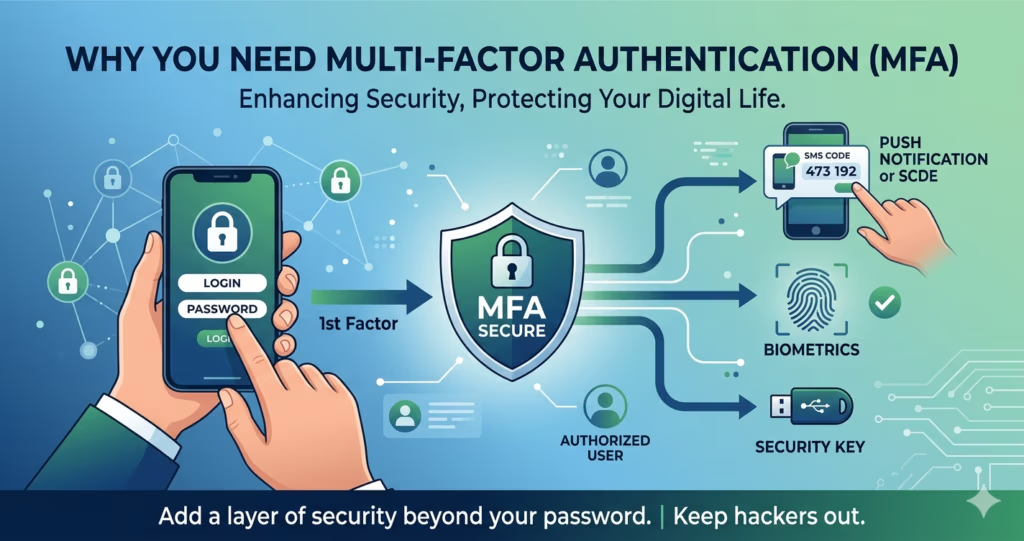
Multi-Factor Authentication (MFA) adds an extra layer of security to your online accounts by requiring additional verification beyond just a password.
Quick Answers
What is MFA?
Multi-Factor Authentication (MFA) is a security method that requires users to verify their identity using two or more authentication factors before accessing an account.
Why is MFA important?
MFA is important because it protects your online accounts even if your password is stolen, guessed, or exposed in a data breach.
What are the most common MFA methods?
Common MFA methods include authenticator apps, security keys, SMS codes, push notifications, and biometric verification.
Is MFA better than passwords alone?
Yes. MFA is significantly more secure than relying only on passwords because attackers need additional verification methods to access your account.
What is the safest MFA method?
Hardware security keys such as YubiKey and Google Titan Security Key are generally considered the most secure MFA methods available today.
Why You Need to Set Up MFA
In today’s digital world, protecting your online accounts is more important than ever. Most people use online services daily for banking, shopping, email, social media, cloud storage, and work-related activities. Because so much sensitive information is stored online, cybercriminals constantly look for ways to steal passwords and gain unauthorized access to accounts.
Traditionally, passwords have been the primary method used to secure online accounts. However, passwords alone are no longer enough to protect against modern cyber threats.
The average person now manages dozens of online accounts. Remembering a different strong password for every account can become difficult and frustrating. As a result, many people reuse the same password across multiple websites or create weak passwords that are easier to remember.
Unfortunately, weak or reused passwords significantly increase cybersecurity risks.
Hackers can use automated tools such as brute-force attacks, credential stuffing, and phishing scams to steal or crack passwords quickly. Passwords based on common words, pet names, birthdays, or predictable patterns are especially vulnerable.
For example, if your password includes your pet’s name and you frequently post about your pet on social media, attackers may be able to guess your password more easily.
This is why cybersecurity experts strongly recommend using strong and unique passwords for every account. A strong password should typically:
- Be at least 12 characters long
- Include uppercase and lowercase letters
- Include numbers and special characters
- Avoid predictable words or personal information
- Be unique for every account
Using a passphrase — a combination of random words — is often more secure and easier to remember than using a single word.
However, even strong passwords are not perfect.
Why Passwords Alone Are Not Enough
Even if you use strong and unique passwords, your credentials can still become compromised through:
- Malware infections
- Phishing scams
- Fake websites
- Data breaches
- Keyloggers
- Social engineering attacks
For example, if your computer or smartphone becomes infected with malware after downloading files from untrusted sources or clicking malicious links, attackers may be able to steal your login credentials. This is where Multi-Factor Authentication (MFA) becomes extremely important.
MFA adds an additional layer of security by requiring another verification method beyond your password before access is granted to your account.
Even if hackers steal your password, MFA can often prevent them from logging in successfully.
According to the CISA article regarding “More than a Password“, users should protect themselves against cyber threats by using MFA.
What Is Multi-Factor Authentication (MFA)?
Multi-Factor Authentication (MFA) is a security method that requires users to verify their identity using two or more authentication factors before accessing an account.
When only two verification methods are used, it is commonly called Two-Factor Authentication (2FA).
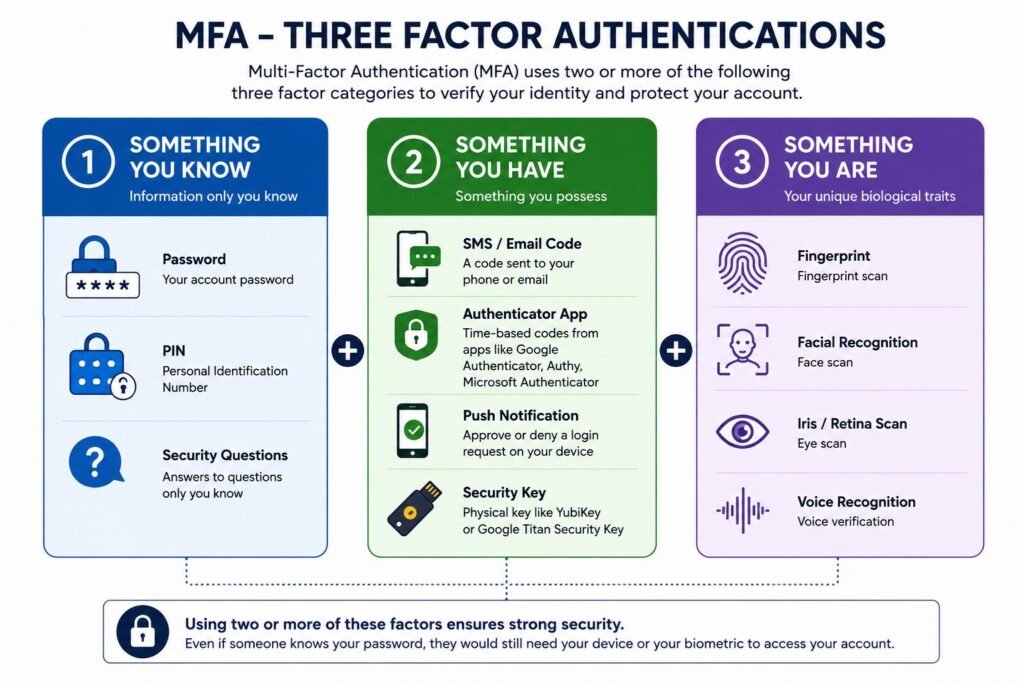
MFA works by combining different categories of authentication factors.
Something You Know
This includes information only you should know:
- Passwords
- PINs (Personal Identification Numbers)
- Security question answers
Something You Have
This includes physical devices or items you possess:
- SMS verification codes
- Email verification codes
- Authenticator apps such as Google Authenticator, Microsoft Authenticator and Authy
- Push notifications sent to your phone
- Physical security keys such as YubiKey and Google Titan Security Key
Something You Are
This includes biometric verification methods:
- Fingerprint scans
- Facial recognition
- Iris or retina scans
- Voice recognition
Using multiple authentication factors makes it significantly harder for attackers to gain unauthorized access to your accounts.
How Does MFA Work?
When MFA is enabled, logging in requires more than just entering a password.
After entering your username and password, you must complete an additional verification step before access is granted.
Example 1: SMS-Based 2FA
- You enter your username and password
- A six-digit verification code is sent to your phone via SMS
- You enter the code to complete the login process
Even if hackers know your password, they still need access to your mobile device to receive the verification code.
Example 2: Authenticator App 2FA
- You enter your username and password
- Your authenticator app generates a temporary six-digit code
- You enter the code before it expires
Authenticator app codes usually refresh every 30 to 60 seconds, making them much harder for attackers to reuse.
Unlike SMS verification, authenticator apps can work even without internet access or a SIM card because they rely on your device’s internal clock.
How to Enable Multi-Factor Authentication
While the setup process varies slightly depending on the service, enabling MFA is usually quick and straightforward. Follow these general steps to secure your most important accounts:
Step 1: Download an Authenticator App (Recommended)
Before you begin, download a reputable app like Google Authenticator, Microsoft Authenticator, or Authy to your smartphone.
Step 2: Log in to Your Account
Access the account you wish to secure (e.g., your email, online banking, or social media profile) using your current username and password.
Step 3: Navigate to Security Settings
Look for a menu labeled ‘Security’, ‘Password & Security’, ‘Sign-in Options’, or ‘Two-Step Verification’. This is where most MFA settings are located.
Step 4: Select Your MFA Method
Choose your preferred second factor. If available, cybersecurity experts recommend choosing an Authenticator App or a Hardware Security Key over SMS codes.
Step 5: Follow the On-Screen Activation Instructions
- For Authenticator Apps: A unique QR code will appear on your computer screen. Open your authenticator app, select ‘Add Account’, and scan the QR code. Your app will immediately begin generating a time-sensitive six-digit code.
- For SMS: You will enter your mobile phone number, and the service will send you a code to verify it.
Step 6: Confirm Setup
Enter the generated code from your app or SMS into the website’s confirmation box.
Step 7: Save Your Backup Codes
Most services will provide a set of one-time backup recovery codes. It is essential that you save these codes in a secure location (like a trusted password manager or physical safe).
You will need these if you lose your phone and cannot access your secondary factor.
Benefits of Using MFA
Stronger Account Security
MFA significantly reduces the risk of unauthorized account access, even if passwords become compromised.
Protection Against Data Breaches
If a company experiences a data breach and your password is leaked, MFA adds another barrier that attackers must bypass.
Reduced Risk of Phishing Attacks
Many phishing attacks rely on stolen passwords. MFA helps reduce the effectiveness of password theft.
Better Protection for Sensitive Accounts
MFA is especially important for:
- Email accounts
- Banking accounts
- Cloud storage
- Social media
- Cryptocurrency exchanges
- Business accounts
Improved Online Safety
Enabling MFA is one of the easiest and most effective ways to improve your overall cybersecurity and online privacy.
CISA recommends organizations adopt phishing-resistant MFA methods to better defend against credential theft and phishing attacks.
What MFA Methods Are Considered the Most Secure?
Not all MFA methods provide the same level of security.
Below are common MFA methods ranked from generally most secure to least secure.
Hardware Security Keys
Examples: YubiKey, Google Titan Security Key
Hardware security keys are widely considered the most secure MFA method available today.
These physical devices use advanced cryptographic authentication and are highly resistant to phishing attacks.
To log in, users typically:
- Enter their password
- Insert or tap the security key
- Confirm authentication
Advantages
- Extremely strong security
- Resistant to phishing attacks
- No SMS interception risk
- Credentials are not exposed online
Limitations
- Keys can be lost or damaged
- Backup recovery methods are necessary
- Additional cost compared to free MFA methods
For best security practices, users should register multiple backup security keys whenever possible.
Authenticator Apps
Examples:
- Google Authenticator
- Microsoft Authenticator
- Authy
Authenticator apps provide an excellent balance between security and convenience.
These apps generate Time-Based One-Time Passwords (TOTP) that refresh every 30 to 60 seconds.
Advantages
- More secure than SMS codes
- Works offline
- Easy to use
- Supports multiple accounts
Limitations
- Recovery can be difficult if the phone is lost
- Backup setup is important
Authenticator apps are one of the best MFA options for most users.
Push Notifications
Push notification MFA sends a login approval request directly to your device.
Instead of entering a code, users simply approve or deny the login attempt.
Advantages
- Convenient and fast
- User-friendly
- Good security for most users
Limitations
- Vulnerable to MFA fatigue attacks if users accidentally approve malicious requests
SMS and Email Verification Codes
SMS and email codes are the least secure common MFA methods, but they are still better than using passwords alone.
Risks of SMS Authentication
SMS-based authentication is vulnerable to:
- SIM swap attacks
- SMS interception
- Phone number hijacking
A SIM swap attack occurs when attackers trick a mobile carrier into transferring your phone number to another SIM card they control. Once successful, attackers may receive your SMS verification codes.
Because of these risks, cybersecurity experts generally recommend using authenticator apps or hardware security keys instead of SMS whenever possible.
What About Biometrics?
Biometric verification includes:
- Fingerprints
- Facial recognition
- Retina scans
- Voice recognition
Although biometrics are commonly used in MFA systems, they are usually not used alone for online authentication.
Instead, biometrics are often used locally to:
- Unlock a device
- Unlock an authenticator app
- Confirm a push notification
- Unlock a security key
Biometrics improve convenience and security but are usually combined with other authentication methods.
Limitations of MFA
Although MFA significantly improves account security, it is not perfect.
Advanced cyberattacks can still target MFA systems through:
- Sophisticated phishing attacks
- Malware
- SIM swapping
- MFA fatigue attacks
- Session hijacking
However, enabling MFA still provides far stronger protection than relying only on passwords.
While MFA helps protect your accounts from unauthorized access, it does not hide your online activity or protect your connection on public Wi-Fi. A VPN provides an additional layer of privacy by encrypting your internet traffic.
MFA and Passkeys
Passkeys are a newer authentication technology designed to replace traditional passwords. They use cryptographic authentication tied to your device and often work together with biometrics or hardware-based security systems.
Passkeys are considered highly phishing-resistant and are becoming increasingly popular among major technology companies.
In the future, passkeys may reduce the need for traditional passwords entirely.
Final thoughts: Should you enable MFA?
Passwords alone are no longer sufficient to protect online accounts from modern cyber threats. Multi-Factor Authentication (MFA) adds a critical layer of protection by requiring additional verification beyond just a password.
Whether you use an authenticator app, push notifications, or a hardware security key, enabling MFA significantly improves your online security and reduces the risk of account compromise.
If MFA is available for your accounts or online services, enabling it should be considered essential — especially for email, banking, social media, and cloud storage accounts.
As cyber threats continue to evolve, MFA remains one of the simplest and most effective ways to strengthen your cybersecurity and protect your digital identity.
Frequently Asked Questions (FAQ)
What is the difference between MFA and 2FA?
Two-Factor Authentication (2FA) uses two verification methods, while Multi-Factor Authentication (MFA) can use two or more authentication factors.
Can hackers bypass MFA?
Although MFA greatly improves security, some advanced attacks such as phishing, malware, and SIM swapping may bypass weaker MFA methods.
Is SMS authentication safe?
SMS authentication is safer than using passwords alone, but it is less secure than authenticator apps or hardware security keys because of SIM swap risks.
Which MFA method should I use?
Authenticator apps and hardware security keys are generally considered the best balance of security and convenience.
Should I enable MFA on every account?
Yes. You should enable MFA whenever available, especially for important accounts such as email, banking, cloud storage, and social media accounts.
Is MFA necessary if I already use strong passwords?
Yes. Even strong passwords can be stolen through phishing attacks, malware, or data breaches. MFA provides an additional layer of protection.
What happens if I lose my phone or security key?
Most services provide backup recovery options such as backup codes, secondary authentication methods, or backup security keys. It is important to configure these recovery options in advance.