Quick Verdict
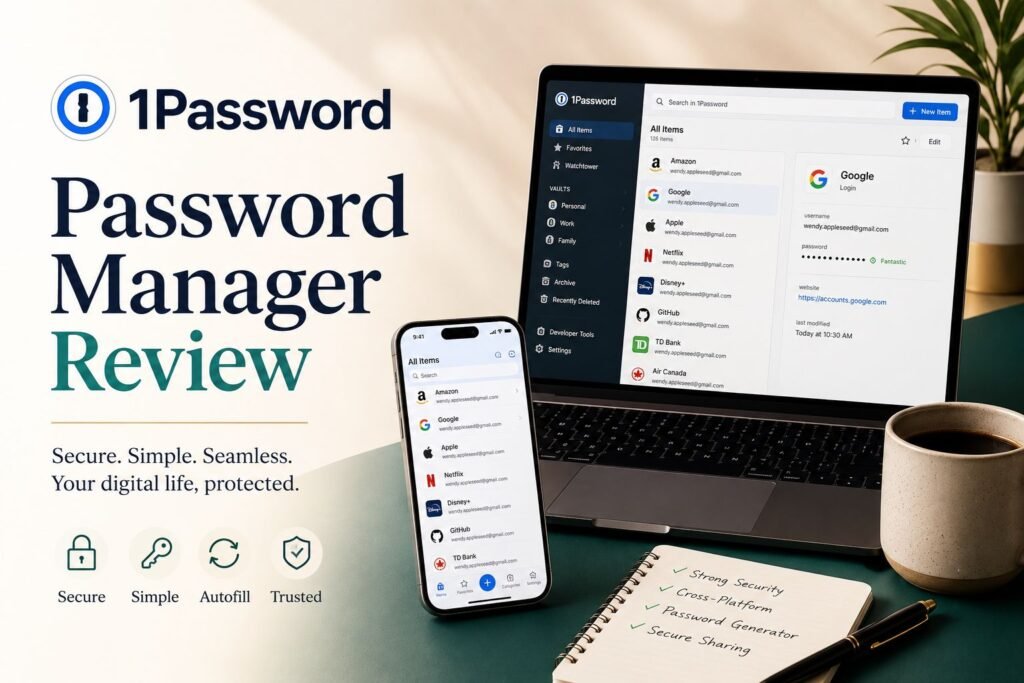
1Password is a premium password manager that combines strong security, intuitive design, and powerful features for individuals, families, and businesses looking to protect their digital accounts.
Introduction
If you’ve been wondering whether 1Password is still worth trusting with your most sensitive digital information, this 1Password review cuts through the noise. Password managers have become essential tools, but not all of them evolve at the pace our online lives demand. In this article, we take a closer look at how 1Password performs today—its security model, usability, and the real‑world experience of relying on it every day.
Quick Answer
1Password is one of the best password managers in 2026, offering strong security through AES-256 encryption, a unique Secret Key, passkey support, Watchtower breach monitoring, and Travel Mode. While it lacks a free plan, its ease of use and advanced security features make it an excellent choice for individuals, families, and businesses.
- Introduction
- Quick Answer
- What Is 1Password?
- Key Features of 1Password
- 1Password Pricing Plans (2026 Overview)
- How to Get Started With 1Password
- 1Password Review: Pros & Cons
- Security & Encryption (Is 1Password Safe?)
- 1Password vs Competitors
- Who Should Use 1Password?
- Final Verdict – Is 1Password Worth It in 2026?
- Frequently Asked Questions
What Is 1Password?
Overview of 1Password
1Password is a leading cross-platform password manager and digital vault that securely stores login credentials, credit cards, secure notes, and passkeys. It safeguards your sensitive data using end-to-end AES-256 encryption and a unique zero-knowledge architecture, ensuring only you can ever access or decrypt your information
Who Owns 1Password?
1Password is a privately held company owned and developed by the Canadian software company AgileBits Inc. It was founded in 2005 by Dave Teare, Sara Teare, Roustem Karimov, and Natalia Karimov. While the founders and AgileBits hold the majority of the company, it also has institutional investors like Accel and ICONIQ, alongside celebrity backers like Ryan Reynolds.
Key Features of 1Password
Password Vault and Secure Storage
Like many other password managers, 1Password includes a built-in password generator that creates strong, unique passwords for each of your accounts. Once generated, these passwords are automatically saved to your vault for secure storage and easy access.
In addition to login credentials (such as usernames and passwords), 1Password allows you to securely store other sensitive data, including addresses and credit card details. Similar to passwords, this information can be automatically filled in when completing online forms and online transactions, ensuring both convenience and security.
Autofill & Browser Extensions
When you revisit the same online account, 1Password automatically fills in your saved credentials (username and password), eliminating the need to rely on memory. This helps reduce the habit of reusing the same password across multiple sites, as you no longer need to remember them yourself.
1Password also offers browser extensions that integrate seamlessly with your web experience. These extensions can generate, save, and autofill passwords, credit cards, and passkeys directly within online forms. To enhance security, they minimize reliance on the system clipboard, reducing exposure to potential malicious software, and they sync their lock and unlock status with the desktop application.
Supported browsers include:
• Chrome
• Firefox
• Safari (including iOS)
• Edge
• Brave
Watchtower Security Alerts
1Password’s Watchtower Security Alerts provide continuous, real-time protection by monitoring your saved data and highlighting potential security risks across your accounts.
Breach Monitoring
1Password’s Watchtower actively monitors your stored credentials against known data breaches to help protect your online accounts. It checks whether any of your saved login details have appeared in publicly reported or verified data breaches and immediately alerts you if a match is found. This allows you to quickly take action, such as changing compromised passwords, before your accounts can be misused. By continuously scanning for exposure risks, Watchtower helps you stay informed about potential security threats without requiring manual checks.
Weak Password Detection
In addition to breach monitoring, Watchtower evaluates the strength and quality of your saved passwords. It identifies passwords that are weak, easily guessable, or commonly used, and highlights any instances where the same password has been reused across multiple accounts.
This is important because reused or weak passwords significantly increase the risk of account compromise if one site is breached. Watchtower encourages stronger password hygiene by prompting you to replace vulnerable passwords with more secure, unique alternatives generated by 1Password.
Multi-Device Sync
1Password enables seamless multi-device synchronization, allowing you to securely access your saved data across a wide range of devices, including smartphones, tablets, laptops, and desktop computers. Whether you are using a browser such as Chrome, Edge, Safari, or Firefox, or accessing the dedicated apps on Android or iOS, your information remains consistently available and up to date.
All data is securely encrypted and synchronized through 1Password’s servers, ensuring that any changes you make on one device are automatically reflected across all others. This provides a smooth and unified experience, especially for users who frequently switch between devices for work, travel, or daily activities. As a result, you can reliably access your passwords, credit cards, and other sensitive information anytime and anywhere without manual transfers or duplication.
Travel Mode
1Password’s Travel Mode enhances privacy during border crossings by temporarily removing selected vaults from your devices. Before traveling, you designate specific vaults as “safe for travel.” All others are hidden locally and from browser extensions, though they remain securely encrypted in the cloud.
This is especially useful for international travel, ensuring sensitive data cannot be accessed if you are asked to unlock your device at a checkpoint. Once Travel Mode is turned off, the hidden vaults automatically restore during the next synchronization. This comprehensive implementation sets 1Password apart from other password managers with limited vault separation features.
Passkeys Support
Passkeys are a passwordless authentication method using built-in device security, like biometrics or a PIN. Based on cryptographic keys, they are more secure and convenient than traditional passwords.
Unlike two-factor authentication (2FA), passkeys eliminate passwords entirely, removing the risks of phishing, credential reuse, and password breaches. Because they are cryptographically bound to specific websites, they cannot be intercepted or used on malicious sites.
1Password supports creating, storing, and autofilling passkeys across devices. Furthermore, users can now log into 1Password itself using a passkey instead of a master password, enhancing both security and ease of use.
1Password Pricing Plans (2026 Overview)
1Password offers subscription plans tailored for individuals, families, small teams, and businesses. Each plan builds on the same core security foundation but adds different levels of sharing, control, and administration features.
Individual Plan
- Price: $3.99/month (paid annually for a total of $47.88)
- Best For: Solo users who want secure password and passkey management across all devices.
The Individual plan includes unlimited password storage, secure file storage (up to 1GB), cross-platform syncing, password health checks, and Watchtower security alerts for weak or compromised credentials. It also supports full passkey storage and vault unlocking.
Families Plan
- Price: $5.99/month (paid annually for a total of $71.88)
- Best For: Households managing shared and personal data.
The Families plan covers up to five members by default (with the option to add more for an extra fee). It includes private vaults for each individual alongside shared vaults for common household logins or documents. Family organizers can also trigger account recovery if a member gets locked out.
Teams Starter Pack
- Price: $19.95/month (paid annually for a total of $239.40)
- Best For: Startups and small teams of up to 10 users.
This tier bridges the gap between personal and enterprise plans, offering a flat-rate cost for small teams. It adds basic administrative controls, role-based permissions, 1Password Developer tools, and integration with basic security alerts.
Business Plan
- Price: $7.99/user/month billed annually
- Best For: Larger organizations requiring centralized control and compliance tools.
The Business plan removes user caps and focuses heavily on corporate administration. It features advanced role-based access, activity logs, custom groups, SCIM user provisioning, and seamless integration with corporate identity providers like Okta, Azure AD, and Google Workspace.
These tools help businesses manage onboarding and offboarding more efficiently while maintaining tighter control over sensitive information.
Free Trial vs. Paid Plans
1Password offers a 14-day free trial across all standard tiers, allowing users to test the full suite of premium features without upfront payment. Once the trial expires, the account is frozen until a paid subscription is chosen, as 1Password does not offer a permanent free tier.
This makes the trial useful for evaluating whether the service fits your needs before committing to a subscription.
Is the Pricing Worth It?
While competitors like Bitwarden offer robust free tiers, 1Password’s recent price adjustments reflect its position as a premium, highly polished ecosystem. For users who prioritize top-tier cross-platform autofill, advanced features like Travel Mode, and reliable family or business sharing infrastructure, the subscription continues to offer strong marketplace value.
How to Get Started With 1Password
Getting started with 1Password is simple, and setting it up correctly ensures you get the full benefit of its security features. Below is a clear, professional walkthrough of the essential steps.
1. Create an Account
Begin by creating your 1Password account on the website or app. During setup, you’ll receive your Emergency Kit, which includes your Secret Key—an essential part of 1Password’s dual‑key security model. Store this document securely, as you’ll need it to sign in on new devices. Once your account is active, you can start organizing your vault and preparing to import your data.
2. Import Existing Passwords
To consolidate your digital life, import your existing passwords from your browser, another password manager, or a CSV file. 1Password supports direct imports from tools like Bitwarden, LastPass, and Dashlane, making migration smooth. This step ensures all your logins, secure notes, and saved credentials are encrypted and stored in one place.
3. Install the Browser Extension
Next, install the 1Password browser extension on Chrome, Edge, Firefox, Safari, or Brave. The extension enables instant autofill, password generation, and quick access to your vault without switching apps. It also helps identify weak or reused passwords as you browse, improving your security hygiene over time.
4. Enable Passkeys and WatchtowerExtension
Finally, turn on Passkeys and Watchtower. Passkeys let you sign in to supported websites without passwords, using secure cryptographic authentication. Watchtower continuously monitors your vault for compromised, weak, or reused passwords and alerts you to breaches affecting your accounts. Together, these features strengthen your protection and keep your online identity safer across all devices.
1Password Review: Pros & Cons
Is 1Password the right secure password manager for you? Here is a quick, honest breakdown of its core strengths and drawbacks.
1Password Pros
Unmatched Secret Key Security
Uses AES-256 zero-knowledge encryption combined with a unique 34-character Secret Key. This ensures your data remains safe even if 1Password’s servers are ever breached.
Flawless User Experience
This ensures your data remains safe even if 1Password’s servers are ever breached.
Advanced Passkey Management
Fully supports creating, storing, and autofilling passkeys. You can even choose to log into your primary 1Password account completely passwordless.
Proactive Watchtower Monitoring
This built-in dashboard flags weak, reused, or compromised credentials, while actively identifying which of your accounts can be upgraded to passkeys or 2FA.
Unique Travel Mode
Perfect for privacy-conscious travelers. This feature lets you completely remove sensitive vaults from your device before crossing international borders, restoring them with a single click once you arrive.
Impeccable Security Track Record
Unlike several major competitors, 1Password has maintained a flawless reputation with zero public data breaches.
1Password Cons
No Permanent Free Tier
Unlike Bitwarden or LastPass, there is no basic free version. Once your 14-day trial ends, you must upgrade to a paid premium subscription.
Unrecoverable Account Risk
Because of its zero-knowledge architecture, if you lose both your Master Password and your downloaded Emergency Kit PDF, your account is permanently locked. 1Password support cannot reset it.
No Self-Hosting Capability
Your data is strictly stored on 1Password’s secure cloud infrastructure. Users who prefer hosting their own local databases (like with Bitwarden or KeePass) do not have that option.
Feature Overkill for Casual Users
The extensive suite of advanced tools, tags, and sharing permissions is incredible for tech enthusiasts, but it may feel overly complex for individuals who just want basic password saving.
Security & Encryption (Is 1Password Safe?)
How 1Password Protects Your Data
1Password uses 256‑bit AES end‑to‑end encryption, securing your data on your device before it’s ever sent or synced. Everything stays encrypted in transit and at rest, so no one can intercept or read your information without your master password and keys.
With its zero‑knowledge architecture, 1Password never sees or stores your master password or encryption keys, and all encryption happens locally. This ensures your data remains private and fully under your control at all times.
Secret Key, a Unique Feature
1Password includes a unique security feature called the Secret Key, which works alongside your master password to protect your account. Unlike many password managers, 1Password requires both elements to sign in, adding an additional layer of encryption-based security.
1Password’s Secret Key adds a powerful second layer of encryption to your account. It’s a randomly generated 34‑character code created when you set up your account and stored only on your trusted devices—not on 1Password’s servers. You don’t need to memorize it, but you must keep it safe, as it’s required along with your master password when signing in on a new device.
This dual‑key design dramatically strengthens security. Even if someone obtained your master password, they still couldn’t decrypt your vault without the Secret Key. Because the Secret Key never leaves your devices and has extremely high entropy, it’s effectively immune to brute‑force or server‑side attacks, ensuring your data remains protected under a robust, encryption‑first model.
Emergency Kit
When you create a 1Password account, you are provided with an Emergency Kit, a downloadable PDF that contains your account email, sign-in address, Secret Key, and a space to record your master password. It also includes a QR code for easier setup on new devices. This document is essential for account recovery and should be stored in a secure offline location.
Security Model Compared to Other Password Managers
1Password uses a zero-knowledge, end-to-end encrypted model where all data is encrypted on your device and can only be decrypted using your master password and unique Secret Key.
Most competitors like Bitwarden, Dashlane, and LastPass also use AES-256 encryption and zero-knowledge storage, but they typically rely on a master password (plus optional 2FA) without an additional mandatory cryptographic key.
This extra Secret Key layer makes 1Password more resistant to attacks such as credential theft and database breaches, since both factors are required to unlock data.
Alongside encryption, 1Password adds security tools like Watchtower, Travel Mode, and passkey support, creating a more integrated security system.
1Password vs Competitors
With many password managers available today, choosing the right one can be challenging. While most leading password managers offer core features such as password storage, autofill, and cross-device syncing, each service differs in terms of security architecture, privacy protections, usability, and advanced features.
1Password vs Bitwarden
1Password and Bitwarden are two of the most respected password managers, but they cater to slightly different audiences. 1Password focuses on delivering a polished, intuitive experience backed by advanced security features such as its Secret Key, Watchtower monitoring, and seamless cross‑platform sync. Its interface is refined and consistent across desktop, mobile, and browser extensions, making it particularly appealing to users who value ease of use and a premium feel.
Bitwarden, by contrast, is an open‑source platform known for transparency, affordability, and flexibility. It offers strong end‑to‑end encryption, cross‑platform support, and a highly customizable experience. Bitwarden’s open‑source nature allows independent audits and community scrutiny, which many security‑conscious users appreciate. However, its interface is more utilitarian, and some advanced features require more manual configuration compared to 1Password’s streamlined approach.
In terms of security, both tools provide robust protection, but 1Password’s dual‑key encryption model (Master Password + Secret Key) offers an additional layer that Bitwarden does not replicate in the same form. Bitwarden remains extremely secure, but its simplicity means fewer proprietary enhancements.
Ultimately, 1Password is the better choice for users who want a polished, effortless experience, while Bitwarden excels for those who prioritize open‑source transparency, lower cost, and customization.
1Password vs Dashlane
1Password and Dashlane are both premium password managers with strong security foundations, but they differ in design philosophy and user experience. 1Password emphasizes a clean, consistent interface across all platforms, supported by features like the Secret Key, Watchtower, and highly reliable autofill. Its apps feel cohesive whether you’re on Windows, macOS, iOS, Android, or Linux, making it ideal for users who work across multiple devices.
Dashlane, on the other hand, has evolved into a more browser‑centric password manager. Its web‑first design makes it extremely convenient for users who primarily operate within Chrome, Edge, Firefox, or Safari. Dashlane also offers strong dark‑web monitoring, identity‑related alerts, and a built‑in VPN on premium plans—features that go beyond traditional password management.
While both services provide end‑to‑end encryption and zero‑knowledge architecture, 1Password’s Secret Key adds an extra layer of protection that Dashlane does not match. Dashlane’s interface is modern and user‑friendly, but its shift away from a full desktop app may feel limiting for users who prefer native software.
In practice, 1Password delivers a more consistent and flexible experience across platforms, while Dashlane excels for browser‑focused users who want integrated identity protection and additional security tools.
1Password vs LastPass
1Password and LastPass are often compared due to their long histories in the password‑management space, but their reputations have diverged significantly. 1Password is known for its strong security architecture, including end‑to‑end encryption, zero‑knowledge design, and the unique Secret Key, which adds a second layer of cryptographic protection. Its apps are polished, reliable, and consistent across all major platforms, making it a top choice for users who want both security and ease of use.
LastPass, while once a market leader, has faced several security incidents over the years, which have impacted user trust. Although LastPass still offers end‑to‑end encryption and dark‑web monitoring, its architecture does not include a dual‑key system like 1Password’s. The free plan is limited to one device type, which restricts true cross‑platform use. Its interface is functional but less refined, and autofill performance can be inconsistent compared to 1Password’s smooth experience.
For users prioritizing security, privacy, and reliability, 1Password clearly stands ahead. LastPass remains a viable option for those who want a free tier and basic functionality, but its limitations and past breaches make it less appealing for users seeking long‑term, high‑assurance protection.
Who Should Use 1Password?
1Password serves a wide range of users, but its value varies depending on individual needs, family dynamics, and organizational requirements, making it important to understand who benefits most—and who may be better suited to alternatives.
Best For Individuals
1Password is a great fit for individuals who want a secure, easy-to-use, and dependable way to manage their passwords across all devices. Its strong security design, accurate autofill, and smooth syncing between platforms make it especially appealing to users who value both safety and convenience.
For solo users, features like password health checks, Watchtower breach monitoring, and Travel Mode add extra protection while keeping everything simple and manageable, helping you stay secure without needing technical expertise.
Best For Families
1Password is a strong option for families who want a safe, organized, and simple way to manage shared and personal information. It lets each family member keep their own private vault while also providing shared vaults for things like logins, important documents, and household details.
Family organizers can help manage accounts, support members who get locked out, and control access permissions without seeing private data. With secure sharing, easy access across devices, and built-in security checks, it helps families stay protected and develop better password habits together.
Best for Businesses
1Password is a strong choice for businesses that need secure credential management and centralized access control. Teams can use shared vaults, role-based permissions, activity reporting, and integrations with identity providers such as Okta, Azure AD, and Duo. Its cross-platform support and administrative tools make it particularly useful for remote and hybrid work environments.
Who Should Avoid 1Password
1Password may not be the best fit for everyone, especially users who are focused on keeping costs as low as possible or prefer completely free tools. Since it operates on a subscription-only model, people looking for a long-term free 1Password security may find it limiting, particularly with recent pricing changes.
It’s also less suitable for users who prefer open-source software or want the ability to self-host their password data, as these options are not available. In such cases, alternatives that offer more transparency and control may be a better match.
Additionally, those who only use a single device or platform may not fully benefit from its strong cross-platform syncing, making simpler or free solutions more practical.
Final Verdict – Is 1Password Worth It in 2026?
1Password remains one of the most reliable password managers in 2026, offering a strong mix of security, ease of use, and useful features. Its zero-knowledge design, smooth cross-device syncing, and tools like Travel Mode, password health checks, and secure sharing make it a solid choice for individuals, families, and businesses.
It delivers strong value for those willing to pay for a premium service, though its subscription model may not suit budget users. Free, open-source, or self-hosted alternatives may fit others better, but for most users, it’s still a top-tier option.
Frequently Asked Questions
What is a password manager and why do I need one?
A password manager is a secure digital vault that creates, stores, and autofills strong, unique passwords for all your online accounts. Instead of remembering dozens of logins, you only need one master password. This helps eliminate weak or reused passwords, which are a major cause of account breaches.
A password manager also protects you from phishing, simplifies login across devices, and ensures your credentials stay encrypted and organized, making your digital life safer and easier to manage.
Is 1Password safe to use?
Yes. 1Password is widely regarded as one of the most secure password managers available. It uses AES‑256 encryption, end‑to‑end encryption, and a zero‑knowledge architecture, meaning only you can decrypt your data. Its unique Secret Key adds an extra layer of cryptographic protection beyond your master password. 1Password also includes Watchtower, a security dashboard that alerts you to weak, reused, or compromised passwords, giving you proactive tools to keep your accounts safe.
Is 1Password better than Bitwarden?
Both 1Password and Bitwarden are excellent, but they serve different needs. 1Password offers a more polished interface, smoother usability, and premium features like Travel Mode, Watchtower, and highly reliable autofill. Bitwarden is open‑source, more affordable, and includes a generous free plan, making it ideal for budget‑conscious or technically inclined users. If you value design, convenience, and advanced features, 1Password stands out. If transparency, cost savings, and open‑source flexibility matter most, Bitwarden is a strong choice.
How does 1Password differ from free browser password managers?
Browser password managers are convenient but limited. They typically work only within a single browser ecosystem and offer basic storage with minimal security oversight. 1Password, by contrast, is fully cross‑platform—syncing across iOS, Android, Windows, macOS, Linux, and all major browsers. It also provides advanced features like Secure Notes, document storage, Watchtower alerts, and Travel Mode. These tools offer deeper protection, better organization, and stronger encryption than what built‑in browser managers can provide.
What is the Secret Key and why is it important?
The Secret Key is a long, randomly generated code created when you set up your 1Password account. It acts as a second cryptographic factor, working alongside your master password to protect your vault. Even if someone guesses or steals your master password, they still cannot access your data without the Secret Key. Because it’s never stored on 1Password’s servers, it cannot be intercepted or recovered through server‑side attacks, making it a critical component of 1Password’s dual‑key security model.
Can 1Password replace my Google Authenticator app?
Yes. 1Password can function as a TOTP authenticator, allowing you to store and generate 2FA/MFA codes directly within your vault. When you save a login with a one‑time code, 1Password can autofill both your password and the time‑based code in one step. This streamlines the login process and keeps your credentials and authentication factors securely stored in one place, reducing the need to switch between apps while maintaining strong multi‑factor protection.
What happens if I forget my master password?
The Emergency Kit contains your account details and Secret Key, which can help you sign in on a new device. However, if you forget your Master Password and have no recovery method available (such as Family or Business account recovery), 1Password cannot reset or recover it because of its zero-knowledge architecture.